A Spotify control deck on your phone
If you searched for a Spotify Stream Deck, you want big buttons for play, skip and volume without alt-tabbing. Klikor puts those on the iPhone or Android you already own, controlling Spotify on your Windows PC.
What you can bind
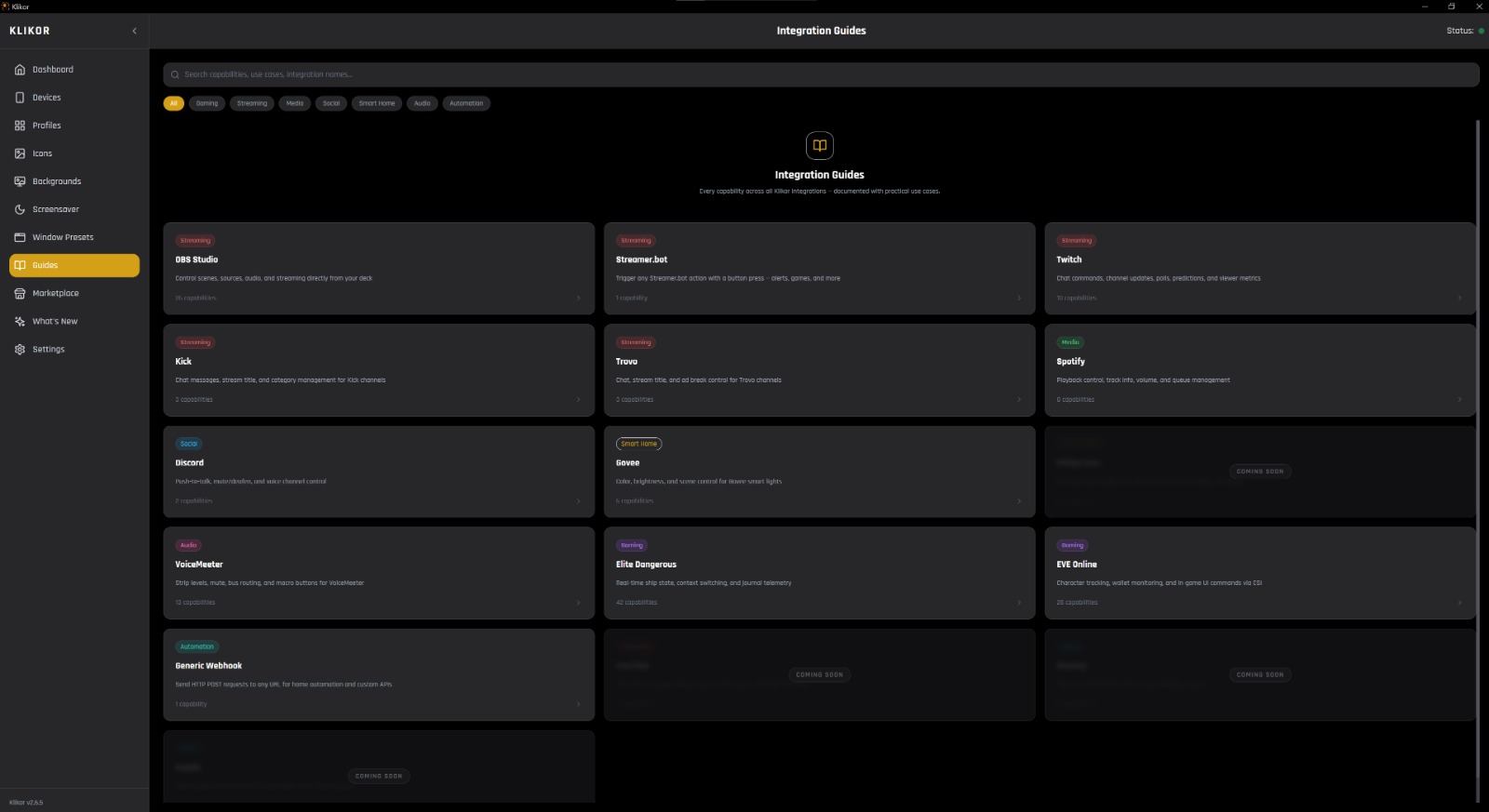
Klikor's Spotify integration gives you these actions as buttons on your phone:
- Play / pause for the current playback.
- Next track and previous track.
- Set volume to a level you choose, from 0 to 100 percent, so you can make a button for quiet, medium and loud.
- Now playing information, which you can use to show what is on.
Because the buttons are ordinary Klikor buttons, you can combine them with everything else. A single press can run a macro that pauses Spotify, switches an OBS scene and fires a script. Pages and profiles are unlimited in the free core.
Important: you supply your own Spotify Client ID
Spotify now limits developer apps to a small number of users, so a single shared app cannot serve everyone. Klikor therefore asks you to create your own free app on the Spotify developer dashboard and paste its Client ID into Klikor. Klikor includes a built-in default ID, but it is subject to that user cap, so do not rely on it. Using your own ID is the supported, reliable path.
The ID is a 32-character lowercase hex string, and Klikor rejects anything else. If you change the ID later, you will need to sign in to Spotify again, because tokens are tied to the ID that issued them.
Setup steps
- Install the free Klikor desktop app on Windows and pair your phone by QR code.
- Go to the Spotify developer dashboard and create an app.
- Add this redirect URI to the app:
http://127.0.0.1:5000/api/spotify/callback - Copy the app's Client ID into Klikor under Settings, Spotify.
- Connect your Spotify account when prompted and approve the permissions.
- Add Spotify buttons to a page and choose play/pause, next, previous or volume.
Requirements and honest limits
- Spotify controls are part of Klikor Pro, a one-time purchase. The core app is free.
- Klikor controls an active Spotify player through Spotify's Web API, so Spotify needs to be running and playing or paused on a device. Spotify itself restricts some playback controls to Premium accounts, so check your plan if commands are refused.
- Your phone talks to the PC over your local network. Spotify's own API calls still go to Spotify over the internet.
- It does not edit playlists or browse your library; this page covers transport and volume only.
The rest of the setup
Klikor needs no account and no cloud. The free desktop app runs on your Windows PC and your phone talks to it directly over your local network, so nothing is relayed through a vendor server. The core app, with unlimited profiles, buttons and macros, is free; the integrations are part of Klikor Pro, a one-time purchase rather than a subscription. If you are weighing it against hardware, see the full Klikor vs Stream Deck comparison, or go straight to the download section.
Spotify control deck: frequently asked questions
Is there a Spotify Stream Deck alternative that uses my phone?
Yes. Klikor turns an iPhone or Android into a button deck for Windows, with Spotify play/pause, next, previous and volume buttons. No extra hardware is needed.
Do I need my own Spotify Client ID?
Yes, that is the recommended setup. Spotify limits developer apps to a small number of users, so you create a free app on the Spotify developer dashboard and paste its Client ID into Klikor.
Is the Spotify integration free?
The Klikor core app is free, but the Spotify integration is part of Klikor Pro, a one-time purchase rather than a subscription.
Does it need Spotify Premium?
Klikor uses Spotify's Web API, and Spotify restricts some playback controls to Premium accounts. If commands are refused, check your Spotify plan.
Can I show the current song on a button?
Klikor can read what is now playing from Spotify, which you can use on your deck. It focuses on transport and volume rather than library or playlist editing.
Build your Spotify control deck
Download the free Klikor desktop app for Windows, scan the QR code with the Klikor app on your iPhone or Android, and start binding buttons.