Control OBS from your phone with buttons that show the real state
Klikor turns your iPhone or Android into an OBS remote. Switch scenes, start and stop the stream, mute inputs and more over your local network, and the buttons always reflect what OBS is actually doing.
An OBS remote app that stays in sync
Most ways to control OBS from a phone fire a command and hope. Klikor connects to OBS through its built-in WebSocket server and also listens to what OBS reports back. When you mute a mic in OBS itself, change scene with a hotkey, or a stream stops on its own, the matching button on your phone updates. You can see whether you are really muted or really live without checking the OBS window.
The desktop app tracks these OBS events: input mute changes, scene changes, stream, recording, replay buffer and virtual camera state, Studio Mode, scene source visibility, the current transition and the current profile.
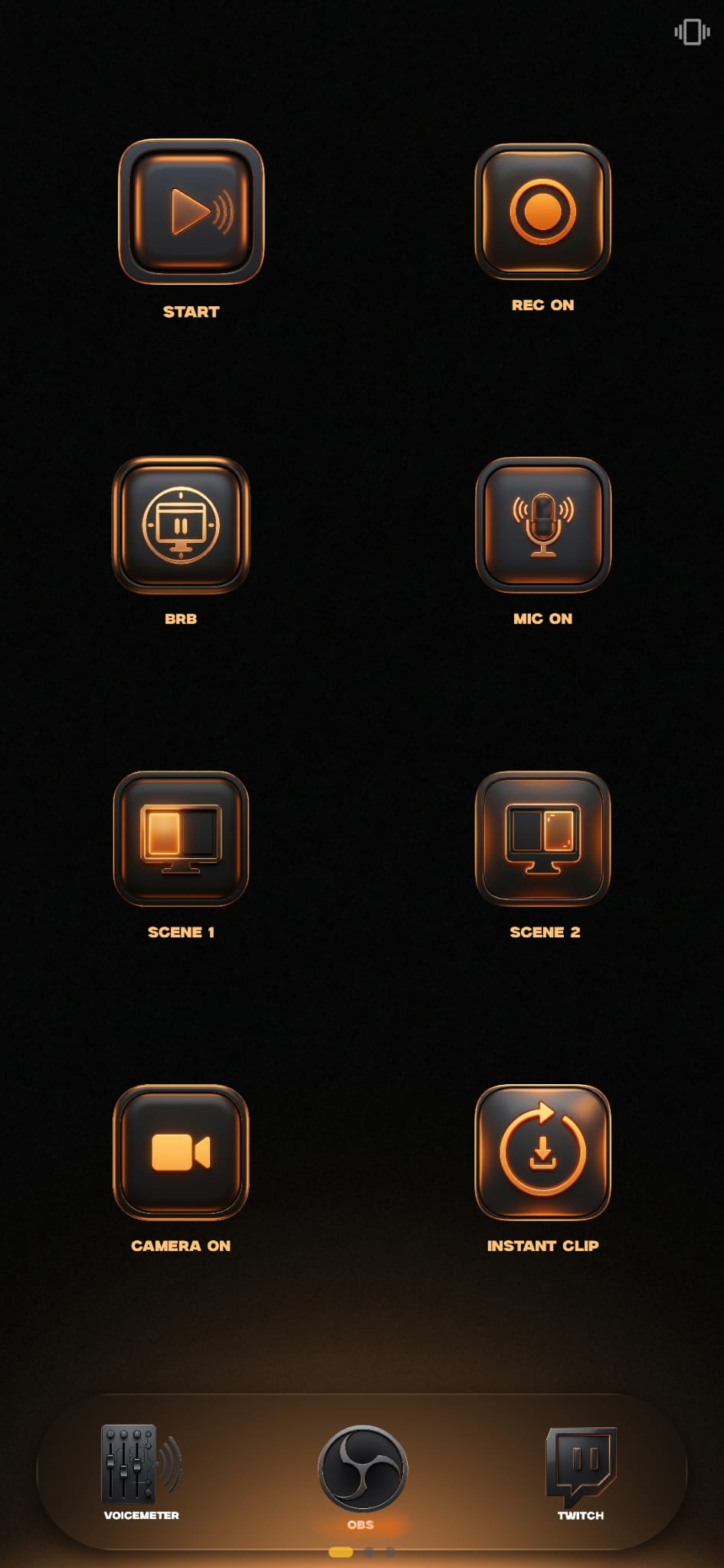
What you can control
- Scenes: switch to any scene
- Sources: toggle a source on or off within a scene
- Streaming: start and stop the stream
- Recording: start and stop recording
- Audio: toggle mute on an input and set input volume
- Extras: virtual camera, replay buffer (toggle and save), Studio Mode, scene transition, and OBS profile switching
These actions are part of Klikor Pro, a one-time purchase with no subscription, unlocks the platform integrations. The rest of Klikor, including unlimited profiles, buttons, macros and scripts, is free.
Set it up in five steps
- Install the free Klikor desktop app on the Windows PC that runs OBS.
- In OBS, enable the WebSocket server (Tools, WebSocket Server Settings). The default port is 4455; set a password if you like.
- In Klikor, open Integrations, choose OBS, and connect with the host, port and password.
- Scan the pairing QR code with the Klikor app on your iPhone or Android.
- Add OBS buttons to a page. The editor lists your actual scenes, inputs and profiles so you pick them rather than type names.
Ideas for an OBS button page
A typical streaming page has one button per scene (Starting Soon, Gameplay, Be Right Back, Ending), a mute toggle for your microphone input, a record button and a go-live button. Because each button reflects OBS, the mic button shows muted or live at a glance, and the stream and record buttons show whether they are running. Add the replay buffer save button for instant clips, or a source toggle to show and hide a webcam or overlay. Buttons can also run macros, so one press can switch scene and unmute a mic together; macros are free in the core app.
Beyond OBS, the same page can hold buttons for other Klikor integrations such as Twitch, Spotify or VoiceMeeter, plus launching apps and running scripts. Everything lives in one layout on your phone, and you can keep separate profiles for streaming, recording and everyday desktop use.
If OBS closes or the connection drops, the integration status in the desktop app shows it, and you can reconnect from the Integrations screen. Klikor remembers your OBS connection details so you do not have to retype them each time.
Local network only
Commands travel from your phone to your PC over your own Wi-Fi. There is no cloud relay and no account to create, and it keeps working when the internet is down. Klikor does not take over your phone, so you can still take calls and use other apps.
Compared with a keystroke-only deck
A deck that only sends hotkeys cannot know the result. If a scene changes elsewhere, its buttons drift out of sync. Because Klikor reads state back from OBS, buttons stay accurate. If you want the wider comparison, see our Stream Deck alternative page. Audio routing users may also like the VoiceMeeter remote page.
Frequently asked questions
Is OBS control free?
OBS control is part of Klikor Pro, a one-time purchase with no subscription. The core app is free: unlimited profiles, buttons, macros and scripts, so you can set up and try your deck before upgrading.
Does it work on iPhone and Android?
Yes. The Klikor mobile app is available for both and pairs with the Windows desktop app over your local network.
Do buttons update if I change something in OBS directly?
Yes. Klikor listens to OBS events such as mute, scene, stream and recording changes, so buttons reflect the live state.
Does it need the internet or an account?
No. Everything runs over your LAN between your phone and your PC, and no account is required.
Do I need to enable anything in OBS?
Yes. Turn on the OBS WebSocket server in OBS settings, then enter its host, port and password in Klikor.
Control OBS from your phone today
Download the free Klikor desktop app for Windows, scan the QR code with the Klikor app on your iPhone or Android, and you are connected in a couple of minutes.