A VoiceMeeter remote on your phone, with live mute and gain state
Klikor puts VoiceMeeter strip and bus controls on your iPhone or Android. Mute, solo, gain and routing, with buttons that follow VoiceMeeter even when you change it on the PC.
Remote control that reads state back
Klikor talks to VoiceMeeter through its remote API on your Windows PC and checks for parameter changes about every 200 ms. If you move a fader or toggle a mute inside VoiceMeeter, or another program does, Klikor picks it up and updates your phone. The buttons show the truth rather than a guess about what the last press did.
The state Klikor tracks is mute, solo and gain for each strip, and mute, gain and EQ on/off for each bus.
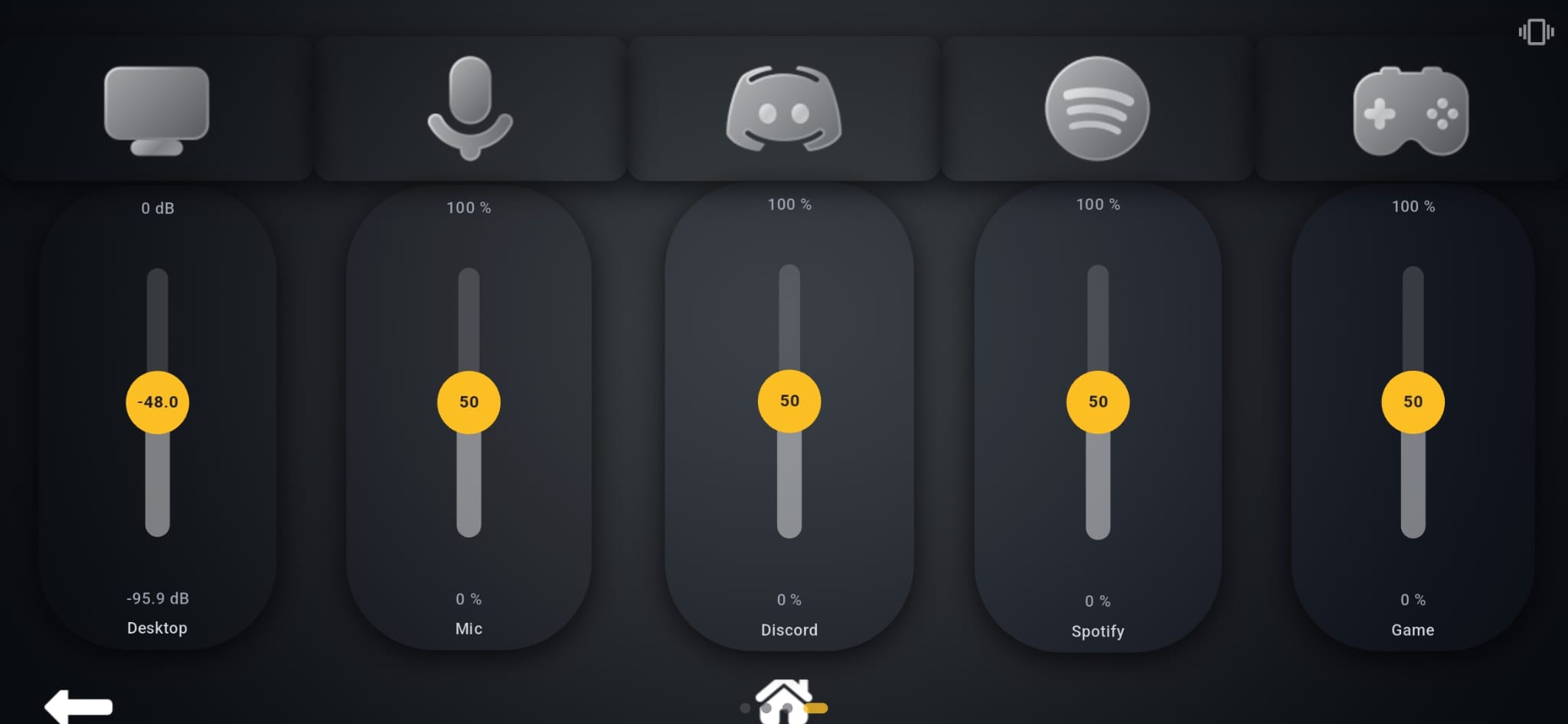
What you can bind
- Strip mute and solo: toggle or set mute, toggle solo
- Strip gain: set gain in dB (clamped between -60 and +12)
- Bus mute and gain: toggle or set bus mute, set bus gain
- Routing: toggle a strip's output to a bus such as A1 or B1
- Bus EQ: toggle the bus EQ on or off
- Any parameter: an advanced action to write a numeric VoiceMeeter parameter by name
Klikor detects whether you run VoiceMeeter, Banana or Potato and sizes the strip and bus lists to match. These actions are part of Klikor Pro, a one-time purchase with no subscription, unlocks the platform integrations. The core app is free.
Set it up
- Install VoiceMeeter on your Windows PC and the free Klikor desktop app.
- Make sure VoiceMeeter is running, then open Integrations in Klikor and connect VoiceMeeter. No password or API key is needed.
- Scan the pairing QR code with the Klikor app on your phone.
- Add VoiceMeeter buttons or sliders to a page and choose the strip or bus for each.
Why it helps
Common uses are a mute button for your microphone strip, a push of a button to route a strip to your headphones bus but not your stream bus, or a quick gain trim during a call or broadcast, all without alt-tabbing. Because state comes back from VoiceMeeter, you can glance at your phone to confirm what is muted.
Example mixer layouts
A simple streaming layout uses a mute button for each microphone strip, a mute button for the bus that feeds your stream, and a gain slider for music. A call-focused layout might have a mute toggle for your mic, a toggle that sends your desktop audio strip to your headphones bus only, and a solo button to check one input on its own. Because every button mirrors VoiceMeeter, a toggle that was changed on the PC shows its real position on your phone straight away.
VoiceMeeter itself stays in charge of the audio. Klikor does not replace its mixer; it gives you a second, always-visible control surface on a device you already own, which is handy when VoiceMeeter is minimized behind a full-screen game or broadcast.
You can combine VoiceMeeter buttons with the rest of Klikor on the same page: OBS scenes, app launchers, macros and scripts. A single press can run a macro that changes a scene and unmutes a strip together. Profiles let you keep a stream setup, a meeting setup and a music setup, and switch between them from your phone.
If VoiceMeeter is closed or the connection drops, the desktop app shows the integration status and you can reconnect from the Integrations screen.
Private by design
Control stays on your local network between your phone and your PC. There is no cloud relay and no account. See the Stream Deck alternative page for how this compares, or read how Klikor handles OBS control from a phone the same way.
Frequently asked questions
Is there a VoiceMeeter remote app for iPhone and Android?
Yes. Pair the Klikor mobile app with the Klikor desktop app on your Windows PC to control VoiceMeeter strips and buses from your phone.
Do I need to pay for it?
The core Klikor app is free. The VoiceMeeter integration is part of Pro, a one-time purchase with no subscription.
Which VoiceMeeter versions work?
Klikor detects VoiceMeeter, Banana and Potato and adjusts the number of strips and buses accordingly.
Do buttons update if I change VoiceMeeter on the PC?
Yes. Klikor watches for parameter changes roughly every 200 ms and updates your phone.
Does it work over the internet?
No. It runs over your local network only, with no cloud relay and no account.
Get your VoiceMeeter remote today
Download the free Klikor desktop app for Windows, scan the QR code with the Klikor app on your iPhone or Android, and you are connected in a couple of minutes.